First session checklist
Get comfortable inside the VaultScope panel
You already have server access. The next ten minutes will help you understand the day-to-day tools: file uploads, console access, backups and where to escalate questions.
1. Meet the server view
When you click a server from the dashboard you land on the combined console and metrics canvas. It shows live CPU, memory and network usage along the top and exposes quick actions—start, stop and restart—above the terminal. Keep the browser open during troubleshooting so you can reference historical output.
2. Upload configuration files
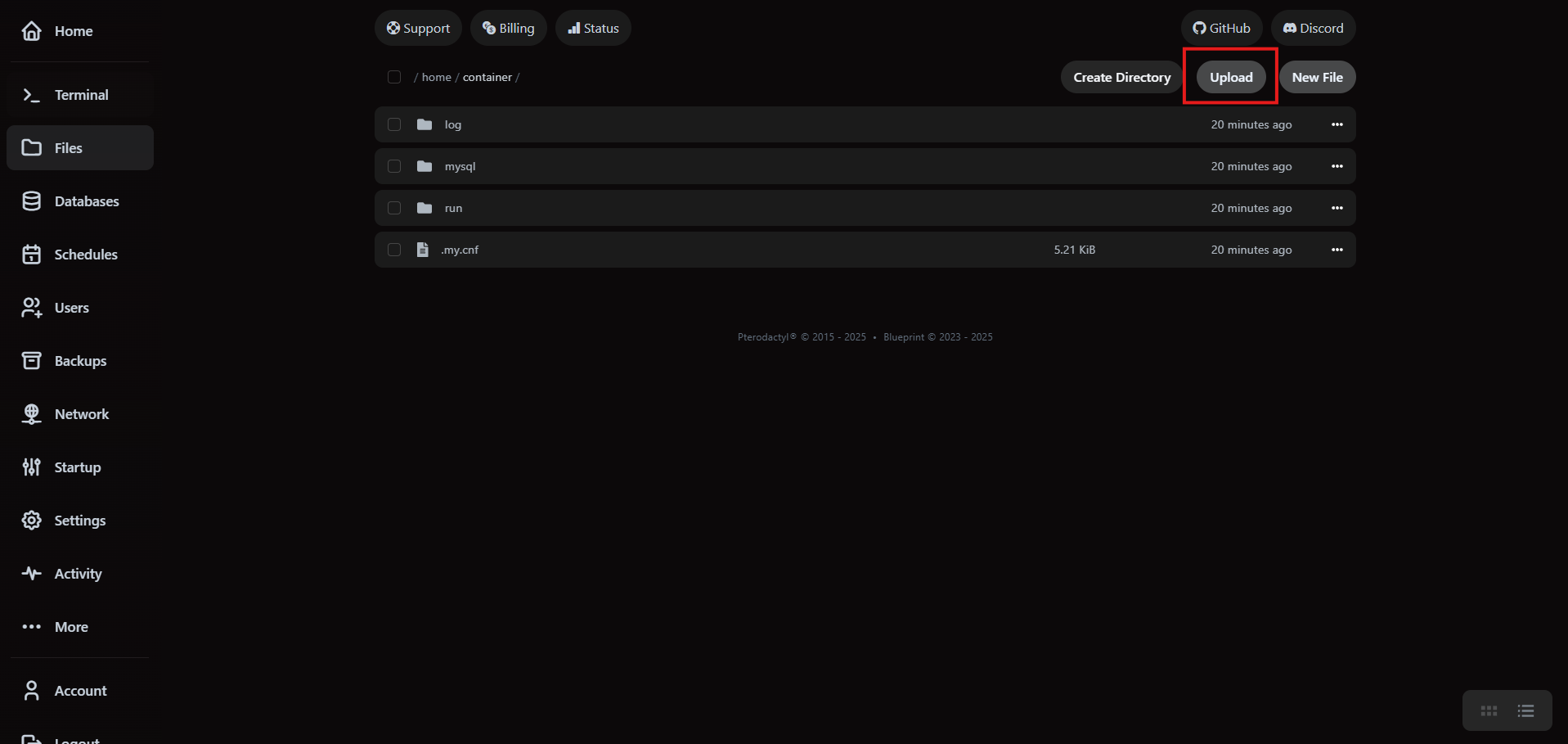
Open the Files tab for an in-browser file manager. Drag and drop works for single files and zipped archives, or use the Upload button for a traditional picker.
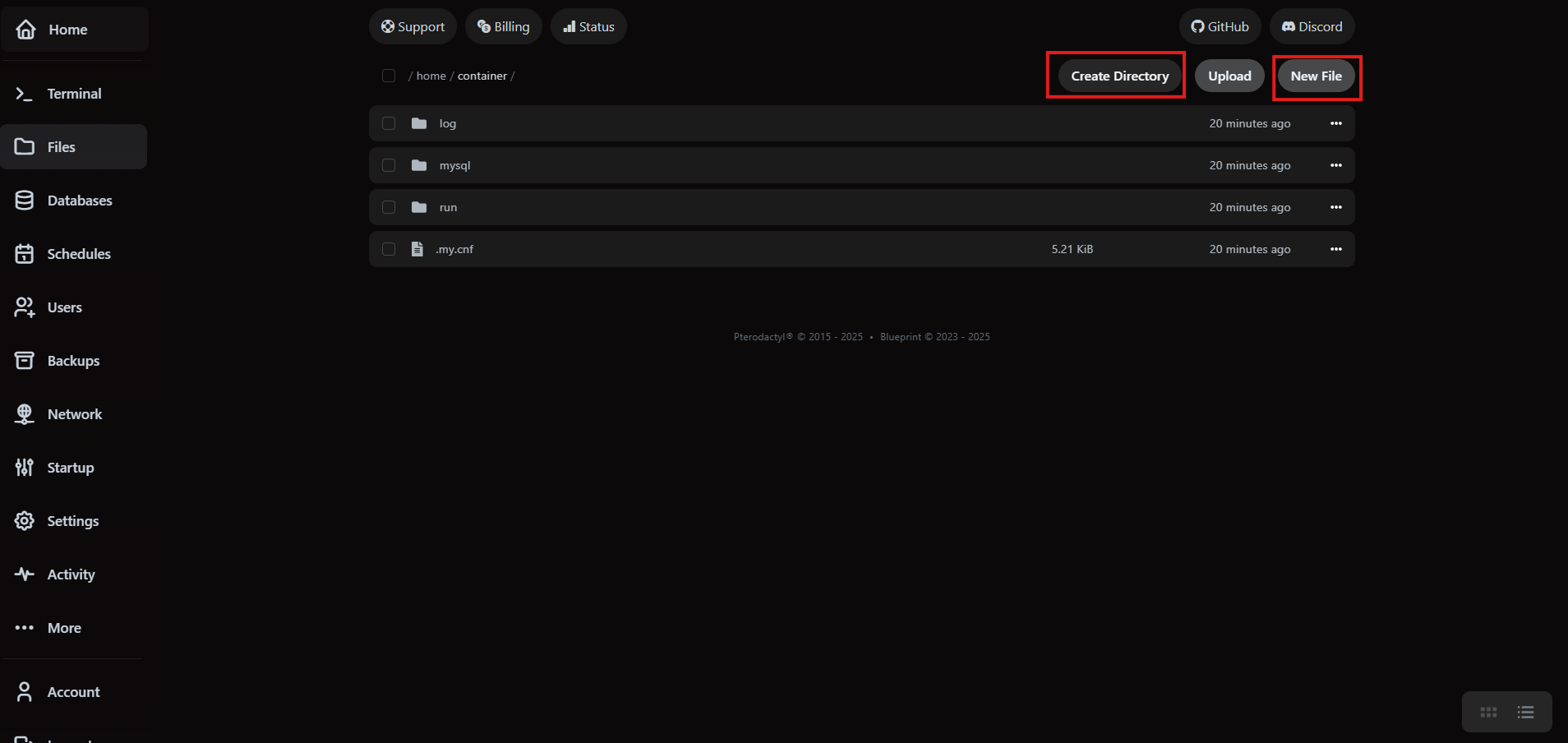
Need to scaffold folders or scripts directly from the panel? Use the New File and New Folder buttons in the top-right corner.
3. Capture a safety backup
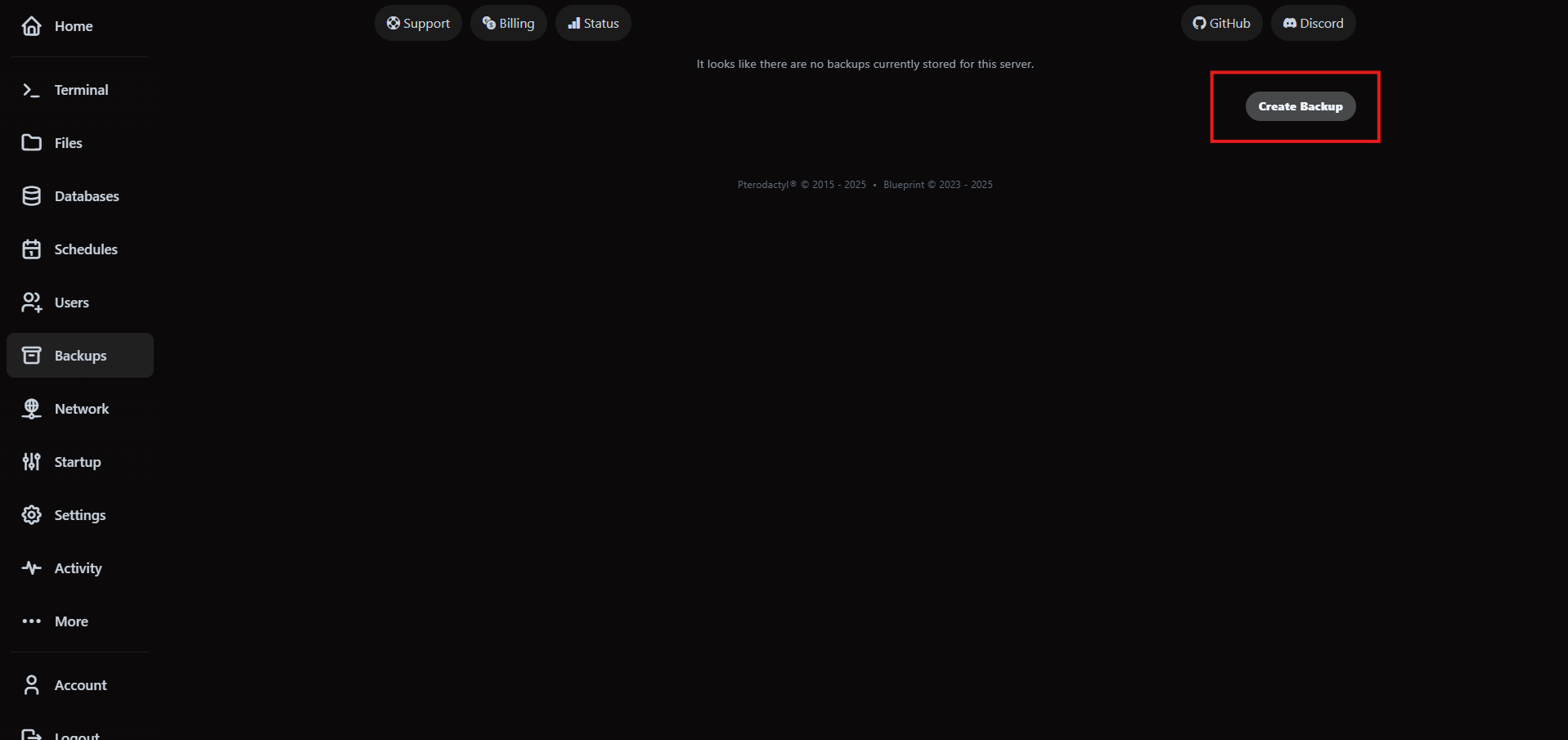
Before you modify anything substantial, create a manual backup. Head to the Backups tab and click Create backup.
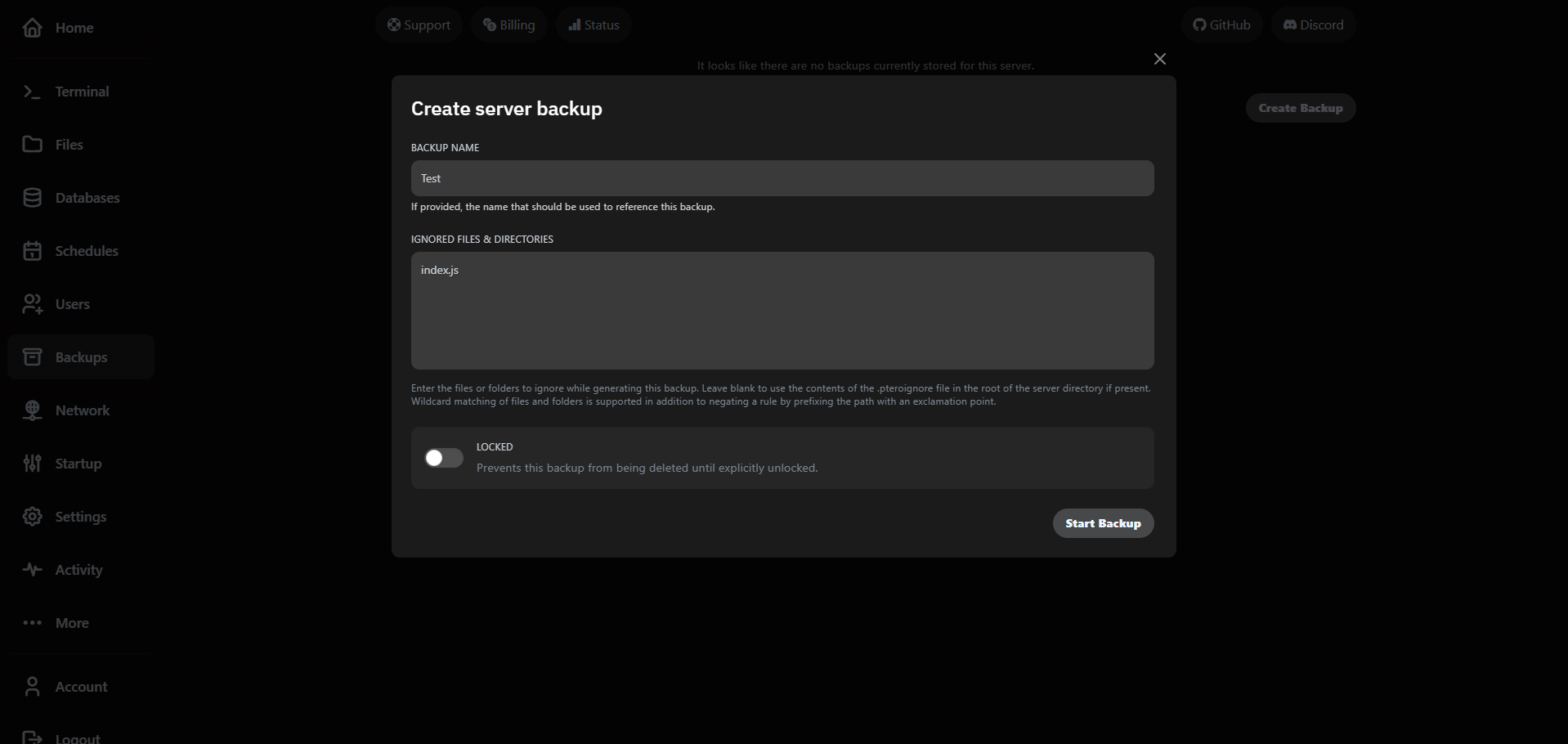
Confirm the name and retention window. Manual backups respect the same limits as scheduled runs and expire automatically once they age out.
4. Know where to find credentials
The Settings tab exposes SFTP credentials, database passwords and allocation details. Rotate sensitive values from here, not the billing portal—the panel syncs them instantly across the cluster.
- Enable SFTP if you prefer a desktop client such as FileZilla or WinSCP.
- Copy the connection details into your password manager so teammates can retrieve them securely.
- Audit credential usage from the Activity tab in the billing area if you suspect a compromise.
5. Escalate the right way
Support staffing follows the same runbooks published in this documentation. When you need help, include the following in your ticket:
- Server ID, region and the action you attempted.
- Console output or log snippets around the time of failure.
- Whether the issue reproduces after a restart or backup restore.
For urgent impact, open a ticket inside the control panel (Support > Create Ticket) and ping the #incidents channel in Discord. Both notify the on-call engineer.