Managed databases
Provision and operate databases
VaultScope ships with built-in database management for each server. You can spin up MySQL-compatible instances, control network access and share credentials with collaborators without leaving the panel.
1. Create a database
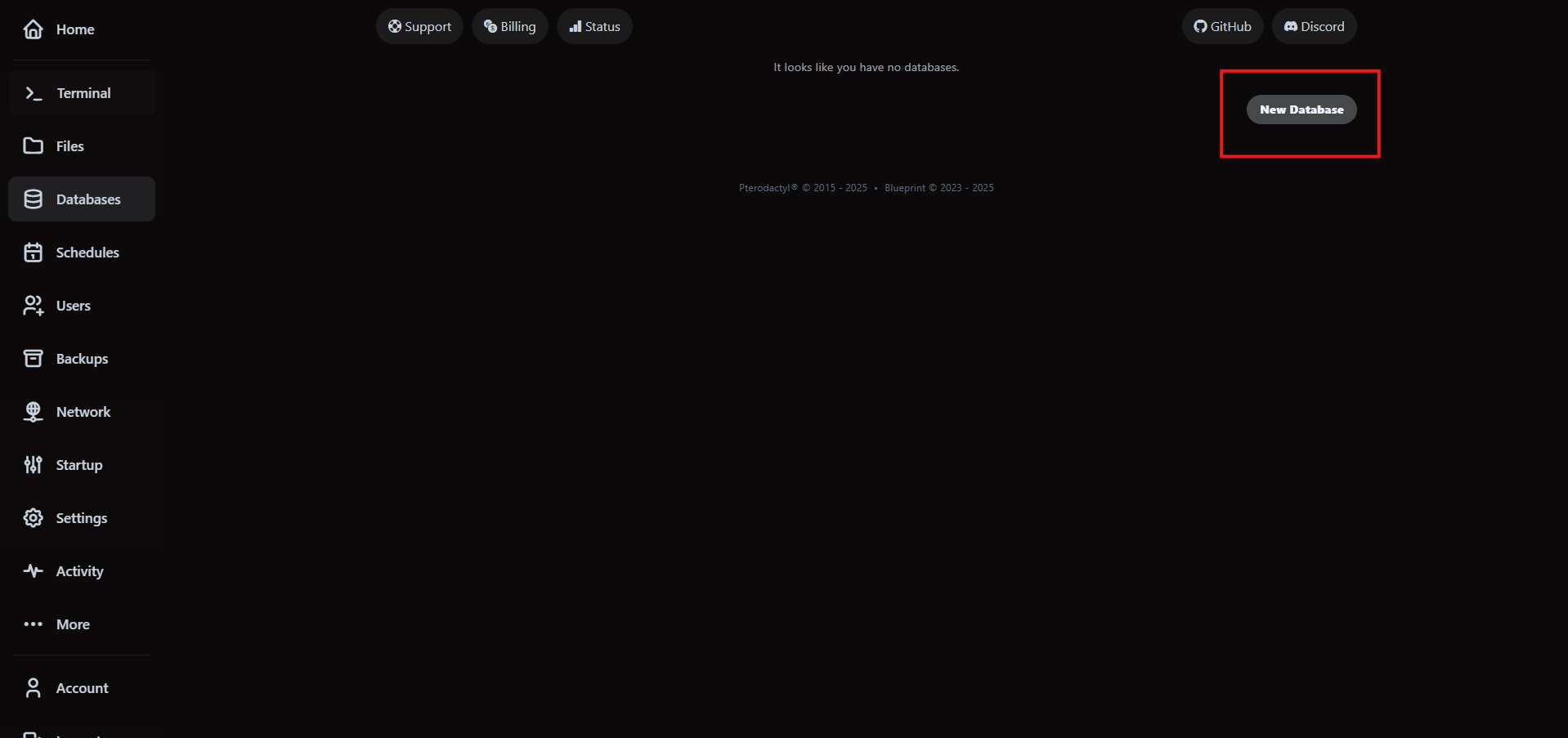
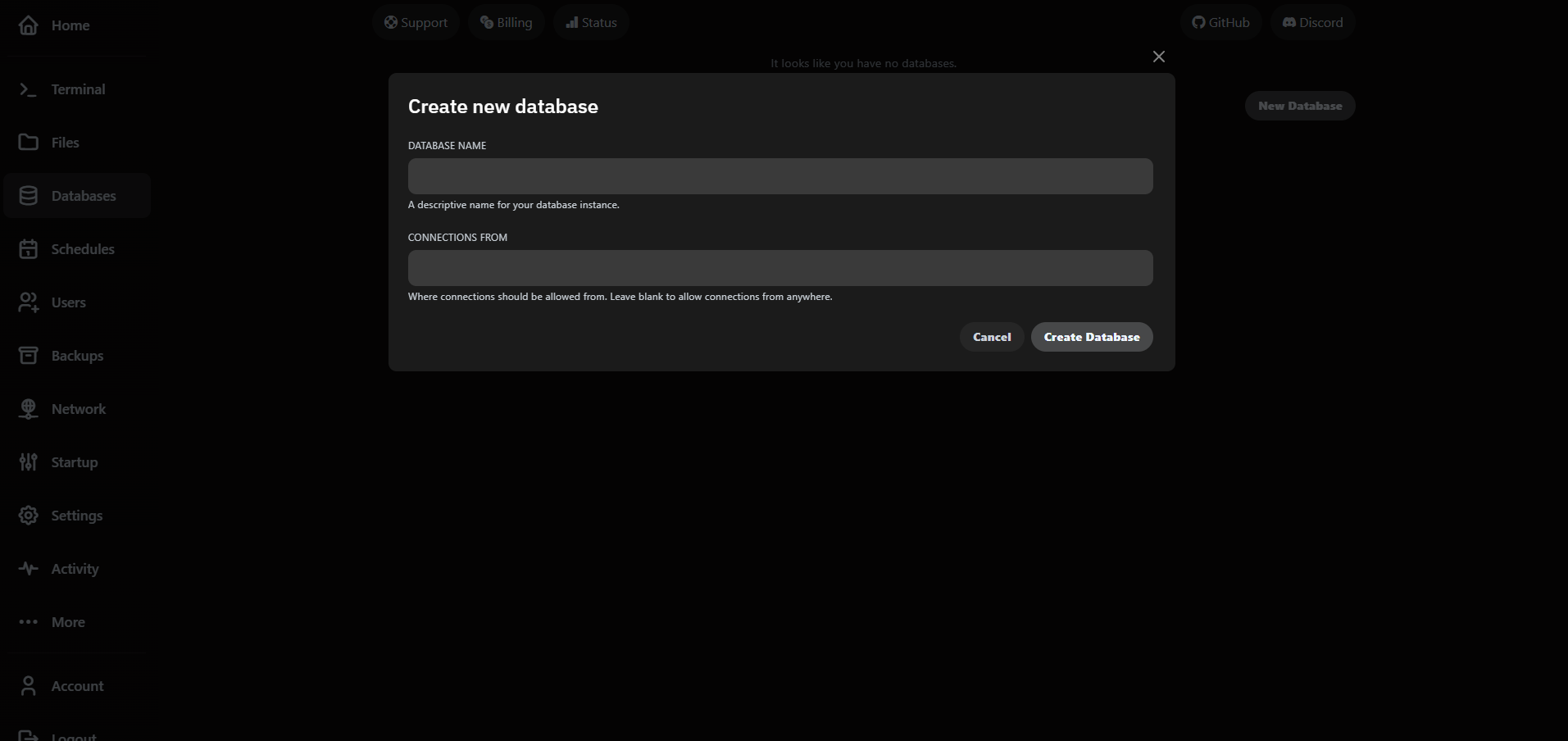
Open the Databases tab on your server and click Create New Database. Give it a descriptive name—VaultScope automatically prefixes it with your server identifier.
2. Connect from applications and tools
- Panel-hosted applications (plugins, containers) can connect using 127.0.0.1 and the provided credentials.
- External tools like TablePlus or DBeaver require you to add your workstation IP in the Allowed Connections field.
- Use SSL tunnels or VPNs for production workloads—open databases directly to the internet only during development.
3. Manage credentials securely
Rotate credentials from the Settings tab when teammates leave or after suspected compromise. VaultScope updates environment variables for all running processes automatically.
- Store secrets in a shared password manager rather than plain text documents.
- Audit database access via the Activity log to trace who created, rotated or deleted credentials.
- Use the security guide to enable two-factor authentication before granting write access.
4. Backups and restores
Databases piggyback on the server backup system. When you trigger a backup, VaultScope exports the database and stores it alongside your files.
- Include a nightly backup schedule to capture incremental changes.
- For emergency restores, recover the database from the backup archive and import it via the panel console.
- Keep larger exports (over 1 GB) locally as well—downloads from the panel are throttled to 50 Mbps for fairness.
5. Performance tuning checklist
- Limit long-running queries by adding indexes for frequently queried columns.
- Enable slow query logging and review results weekly.
- Separate read-heavy workloads into replicas—open a ticket for managed replica options.
- Monitor CPU, RAM and disk usage from the Metrics panel to detect spikes caused by database load.
Troubleshooting
- Connection refused: confirm your IP is allowed and the database service is running.
- Authentication failed: reset the password from the panel and restart dependent services so they pick up the new credentials.
- Timeouts or slow queries: export the slow query log and follow the optimization checklist.
If you get stuck, open a ticket under Database Assistance and include the server ID, database name and exact timestamps of the issue.